
Drag & Drop
How to Properly Position Your Screens?
A video wall only works well if your screens are correctly positioned in Windows. A wrong order or poor alignment, and your image ends up shifted or cut off. Here is how to set this up properly.
Accessing the Windows display settings
Right-click on your desktop, then choose Display settings. To move a screen, select it with a left-click and hold the button down to drag it to the right position.
With the Videowall feature set to Yes, Easy Multi Display supports up to 18 screens.
The settings you absolutely must follow
Before positioning your screens, check these four essential points:
- Screen 1 must be your main desktop. Select the first screen and tick the box Make this my main display.
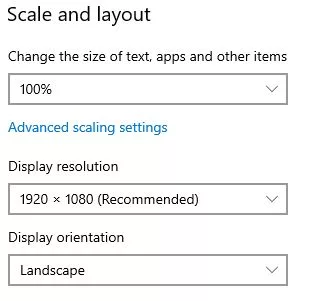
- Scale and layout at 100% for all screens. A screen set to 125% or 150% throws off the alignment.
- Use the same resolution on all your screens.
- Use the same graphics cards, or at least the same brands. Do not mix an NVIDIA card with an AMD card: you will run into alignment problems, and the display order may be different on each startup.
How to position your screens?
The goal is twofold: the right order (the screens follow one another in the correct direction) and the right alignment (the screens are perfectly joined, with no vertical or horizontal offset).
Video wall on a horizontal line
- Good: the screens follow one another from left to right, perfectly aligned at the same height.
- Bad: the screen order is not respected (screens swapped).
- Bad: the alignment is off (one screen is shifted up or down).
Video wall on a vertical line
- Good: the screens are stacked in the right order, perfectly centred one below the other.
- Bad: the screen order is not respected.
- Bad: the alignment is off (one screen sticks out to the side).
Square or rectangular video wall
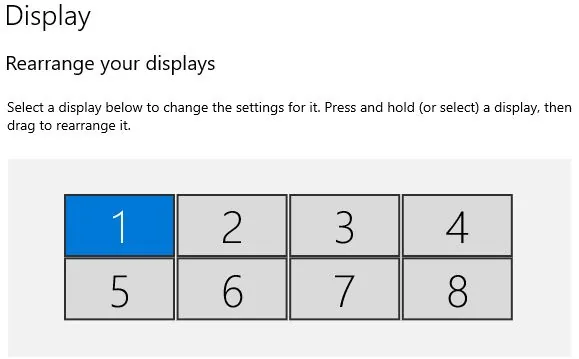
- Good: the screens form a regular grid, in the right order and perfectly joined.
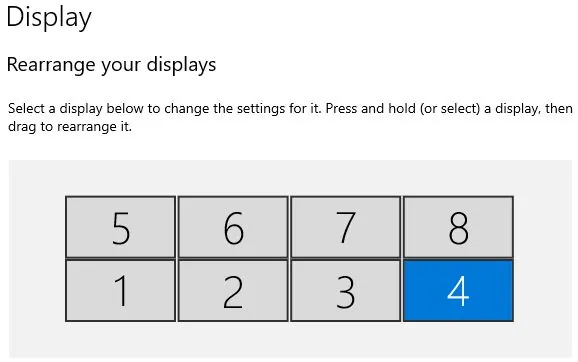
- Bad: the screen order is not respected.
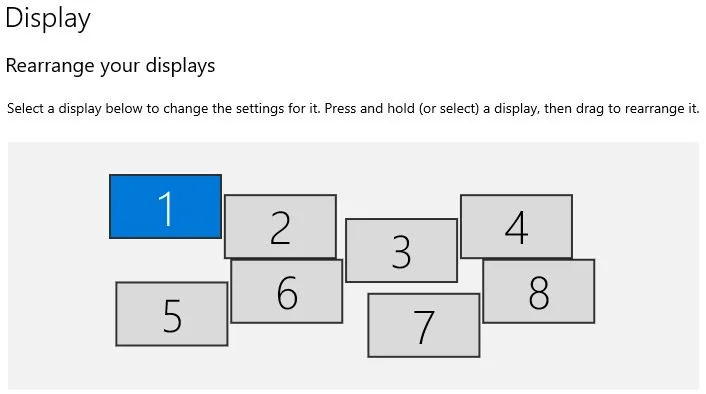
- Bad: the alignment is off (the rows or columns are misaligned).
The same principle applies to larger configurations, such as an 8-screen wall: each screen must be in its place and perfectly aligned with its neighbours.
Still running into a problem?
If you still have questions or difficulties with your display or settings, feel free to check our F.A.Q, download our user guide, or contact our customer service at support@easymultidisplay.com. We will be delighted to help you.