
Drag & Drop
EMD can't write the config file: what to do?
When starting up or saving your settings, Easy Multi Display shows a message saying it can’t write the configuration file? This block is almost always caused by a simple access rights issue on the installation folder, and it can be fixed in a few clicks.



Why this error appears
Easy Multi Display needs to be able to save its settings in its installation folder, located by default in C:\Program Files\EasyMultiDisplay. However, under Windows, the “Program Files” folder is protected and does not always allow writing for all user accounts. If your Windows session does not have sufficient rights on this folder, the software cannot save its configuration file, hence the error message.
Fixing the installation folder permissions
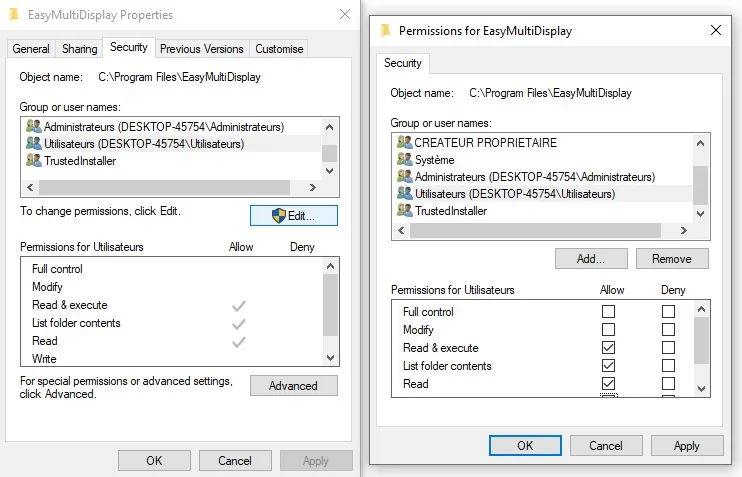
The solution is to grant the user full control over the Easy Multi Display folder. Here is the procedure, step by step:
-
Open Windows File Explorer and go to the Easy Multi Display installation folder, usually
C:\Program Files\EasyMultiDisplay. -
Right-click on the “EasyMultiDisplay” folder, then select “Properties” from the menu.
-
In the window that opens, click on the “Security” tab.
-
Check the write permissions granted to users. If they are insufficient, click the “Edit” button to adjust them.
-
Select your user (or the “Users” group), then check the “Full control” box to grant all permissions, including writing.
-
Click “Apply” to confirm the changes, then close the windows with “OK”.
Check that everything works
Restart Easy Multi Display, then make a setting change and save it. The error message should no longer appear: the software can now freely write its configuration file.
Still having the problem?
If the error comes back despite changing the permissions, check the following points:
- Make sure you are logged in with an account that has administrator rights on the machine.
- Try launching Easy Multi Display as an administrator (right-click on the shortcut, then “Run as administrator”).
- Contact our customer support at support@easymultidisplay.com, specifying your Windows version and the exact error message displayed.
Our team is here to help you and get your video wall back in service as quickly as possible.