Drag & Drop
How to display your social networks on multiple screens?
It can be very useful to display your social networks on multiple screens to showcase your images and your Facebook, Instagram, LinkedIn or Twitter posts.
For example, scrolling an Instagram feed across a screen wall is child’s play.
In the video below, two screens are used in portrait mode (1080 x 1920), with two zones per screen and two Instagram accounts per zone, for a total of eight Instagram feeds displayed at the same time.
How to get synchronized scrolling
The special feature of this configuration: a height of 4500 pixels was set for each feed (“Set height” function), so that all the feeds start and stop at the same time.
Previously, the “Bottom of site” function was used: it scrolls through the entire feed. You can then either change the URL after a defined duration (every 2 minutes for example), or change the URL at the end of the automatic vertical scroll.
Compatible with all networks and all sites
This method works with all social networks (Twitter, Facebook, LinkedIn, Pinterest, Viadeo, etc.), all websites, all online shops (PrestaShop, Joomla, WordPress, Blogspot, etc.), all marketplaces (eBay, Amazon, Leboncoin, Airbnb) as well as real estate sites.
You can display up to 24 sources on 6 screens simultaneously.
Note: in the video, it is the very high resolution screen captures (2160 x 1920) that may appear jerky in the recording, and not the scrolling itself, which stays perfectly smooth on screen.
The configuration for a 1920 x 1080 resolution
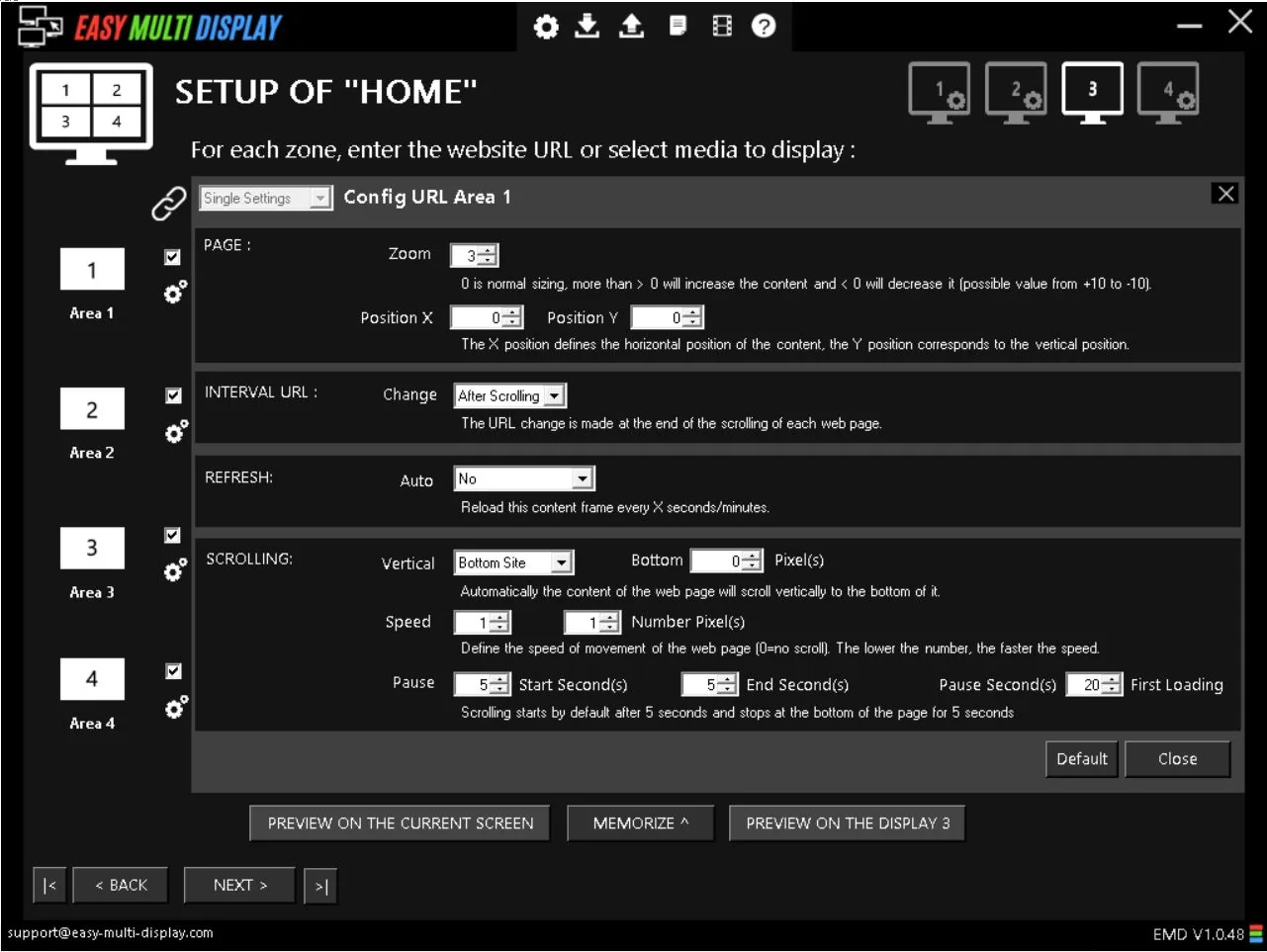
Here are the settings to enter in the Easy Multi Display parameters depending on the social network and the number of zones you want.
1 zone:
- Zoom: 5
- Position in pixels X: -1530
- Position in pixels Y: -200
- Page height +: 0
- Page width +: 0
4 zones:
- Zoom: 3
- Position in pixels X: -730
- Position in pixels Y: -300
- Page height +: 0
- Page width +: 0
1 zone:
- Zoom: 5
- Position in pixels X: -40
- Position in pixels Y: -320
- Page height +: 0
- Page width +: 0
4 zones:
- Zoom: 5
- Position in pixels X: -40
- Position in pixels Y: -320
- Page height +: 0
- Page width +: 0
Use the same settings logic (zoom and position in pixels X/Y) and adjust the values to frame the Twitter feed within your zones, in one or four zones depending on your layout.
Still having trouble?
If you still have questions or a display or settings issue, please feel free to check our F.A.Q or to contact our customer service at support@easymultidisplay.com. We will be happy to help you.