Drag & Drop
How to display the same image across several shops?
Do you manage several shops, branches or points of sale and want to display the same image everywhere, without touching each screen? Easy Multi Display lets you broadcast an identical image across several sites simply by relying on an online storage service (the cloud).



The idea is simple: you prepare an image just once, you drop it into a synchronised folder, and it displays automatically on every screen involved.
Step 1: create the same folder structure in the cloud
Use the online storage service of your choice. In the example, we use OneDrive, but you can just as easily use Google Drive or Dropbox.
Create a separate folder for each shop, while keeping exactly the same organisation (the same folder tree) from one site to another. This consistency is the key: it is what allows each screen to find the right image in the right place.
Step 2: give the same file name to the shared images
For each image you want to broadcast across several sites, use an identical file name in every folder.
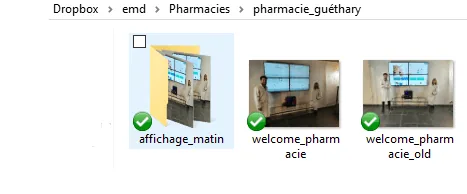
In our example, the image is called Welcome_pharmacie and it is copied into each pharmacy’s folder. Because the file name is the same everywhere, all the screens display the same image.
Step 3: update the image while keeping the same name
This is where the whole benefit of the method lies. To change the image quickly from your mobile or your PC, simply replace the old image with a new one while keeping the same file name.
You then have nothing to change in Easy Multi Display: the new image displays automatically on every screen, as soon as the cloud synchronisation is complete.
Need help?
If you run into the slightest difficulty, you can consult our FAQ, download the user guide or contact us directly at support@easymultidisplay.com. We are here to support you.