Drag & Drop
How to broadcast DTT (television) from a DTT tuner with EMD?
Easy Multi Display lets you display digital terrestrial television (DTT) channels directly on your video wall. To do this, you use the VDTNT_PlaylistCreator.exe tool, which generates a channel list from a DTT receiver. This guide walks you through it step by step, even if you are not a technician.


The hardware you need
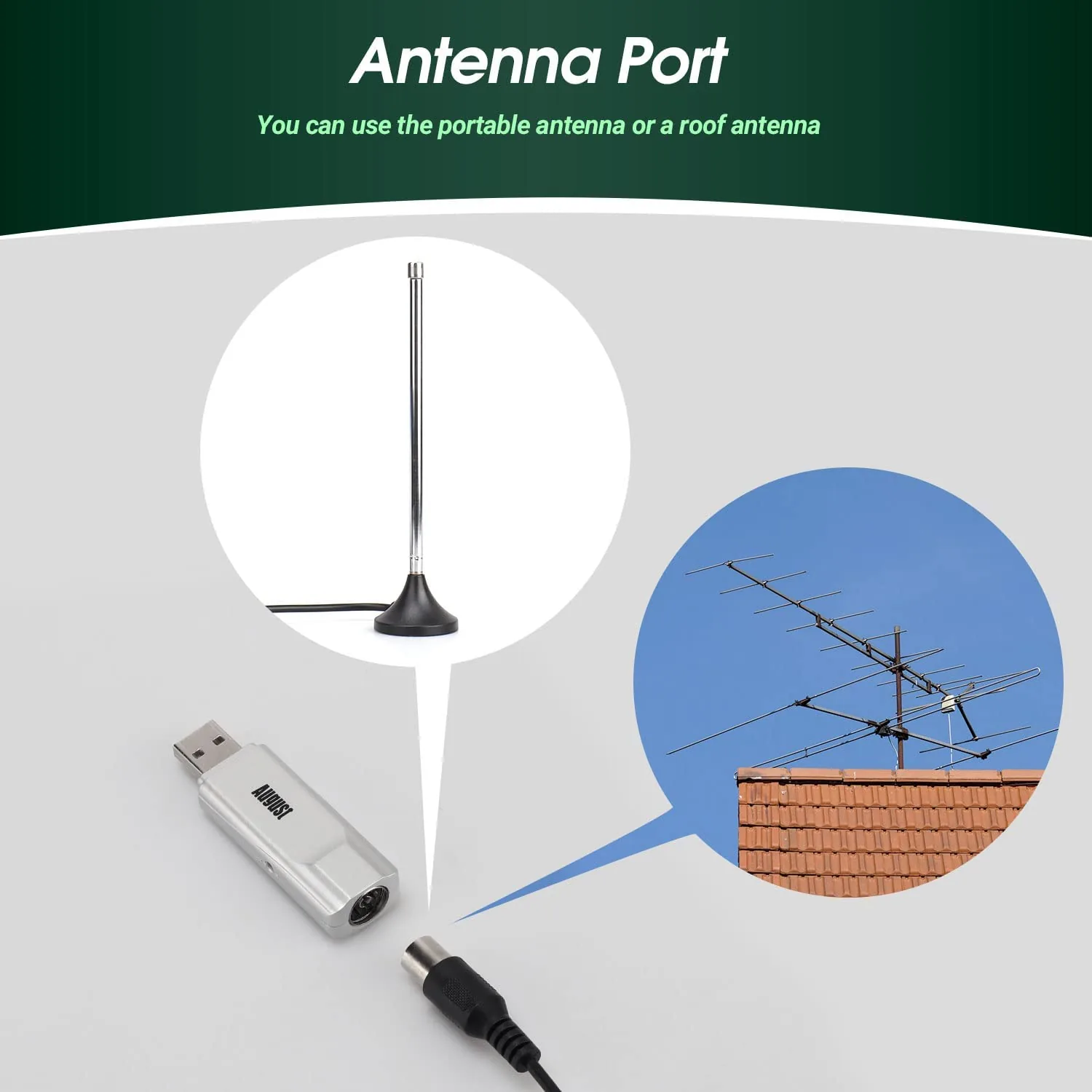
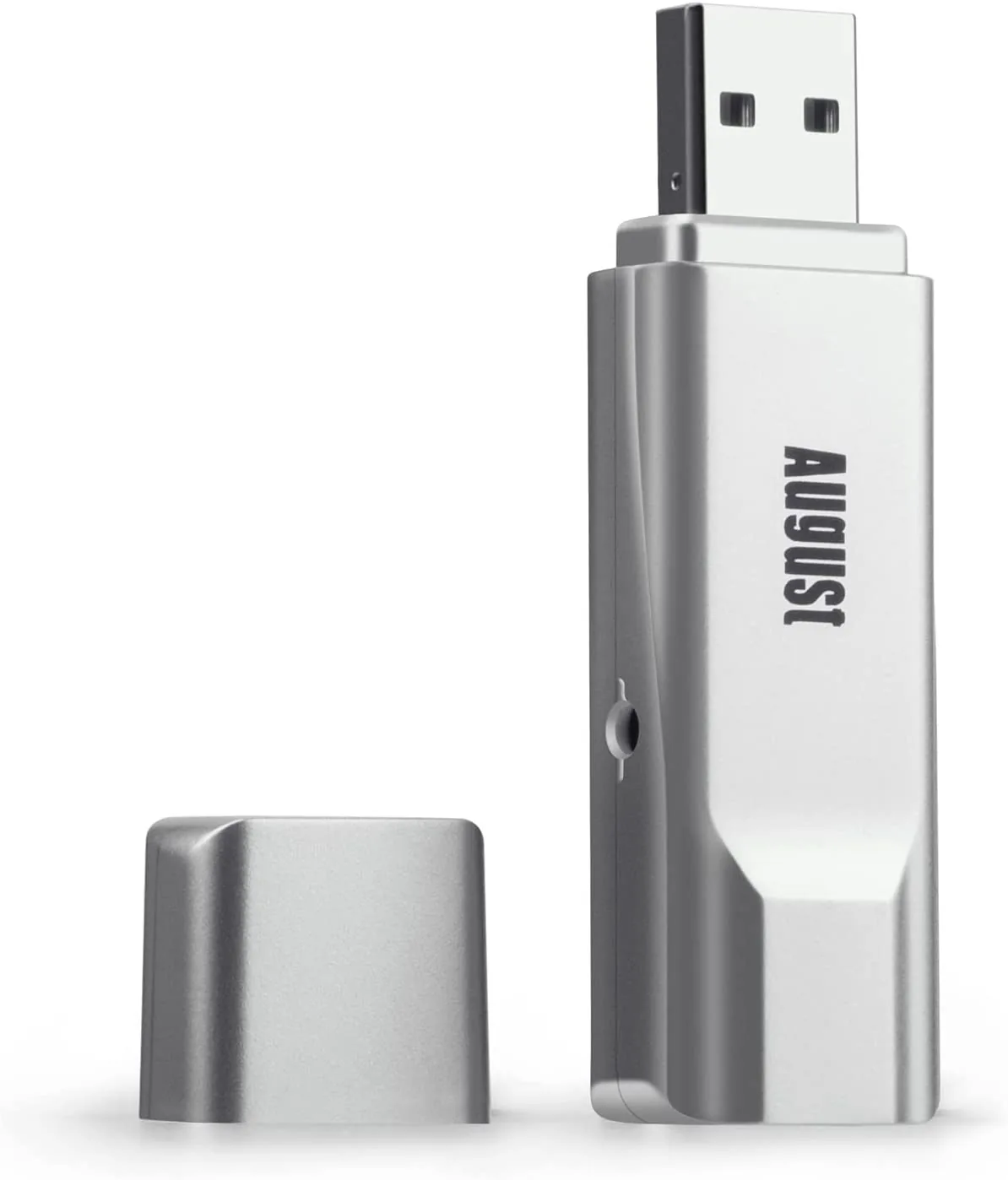
To receive DTT, you need a DirectShow-compatible DTT card or USB stick (BDA driver). This tutorial is based on the example of an August DVB-T210 USB stick, but the procedure is identical with other compatible models.
Launch the tool and choose the receiver
- Open the
VDTNT_PlaylistCreatorprogram. - Select the DTT tab.
- Click Settings.
- In the drop-down list, choose your DTT receiver (for example your DVB-T stick).
Scan the channels automatically
The simplest method is to let the tool detect the channels on its own.
- Select your country.
- Click Scan.
- The tool automatically searches for all the channels available in your area.
Scan the channels manually
If automatic detection does not find the channels, you can enter the parameters by hand. Depending on your region, fill in:
- the frequency bands,
- the bandwidth,
- the frequency shift.
These values depend on your geographic area and on the transmitter that serves you.
Manage and organise the channels
Once the channels have been detected, you can test and organise them:
- Test a channel with the Play / Stop buttons.
- Reorder the channels with the arrows.
- Rename a channel with the pencil icon.
- Duplicate a channel with the plus (+) button.
- Delete a channel with the minus (-) button.
Set the audio and subtitles
For each channel, drop-down menus let you adjust:
- the audio track (useful for multilingual channels),
- the subtitle options.
Save the list and broadcast in EMD
When your channel list is ready:
- Click Save.
- Launch Easy Multi Display.
- Select the TV media.
- Find your playlist.
- Choose a channel.
- Start the broadcast on your video wall.
Your DTT channel now appears in the chosen zone of your wall, alongside your other video sources.