
Remote control
How to use the software remote control (EMDRC) keyboard shortcuts and configure a Stream Deck?
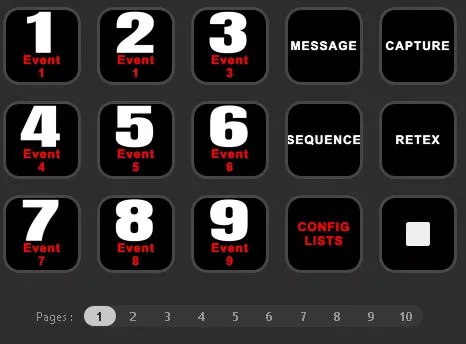
The EMDRC software remote control (Easy Multi Display Remote Control) lets you drive your video walls without ever leaving the keyboard. Each major function is tied to a simple shortcut, which speeds up actions in the command room. These same shortcuts can be reproduced on a Stream Deck unit to get clear physical buttons, with one image per function.


Configuration lists (keys F1 to F10)
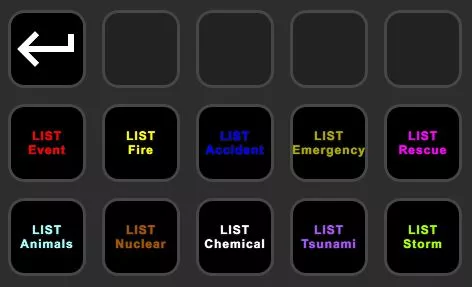
The function keys F1 to F10 are used to select a pre-saved configuration list. This lets you switch from one set of settings to another with a single key, without going through the menus.
Scenarios (Ctrl + numeric keypad)
To launch the display of a scenario, use Ctrl + numeric keypad key, from 1 to 9. Each digit corresponds to a scenario.
To stop the current display, press Ctrl + 0 (numeric keypad).
RETEX: broadcast and recording
The RETEX function (feedback / after-action review) is used to broadcast and record a session:
- Shift + R: start playback / broadcasting.
- Shift + S: stop.
Messages (Ctrl + 1 to Ctrl + 0)
To display a prepared message on screen, use Ctrl + 1 through Ctrl + 0. Each combination corresponds to a message saved in advance.
Sequences (Alt + 1 to Alt + 0)
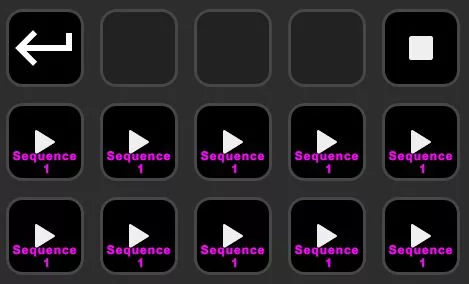
Sequences are triggered with Alt + 1 through Alt + 0. A sequence automatically chains several displays in a defined order.
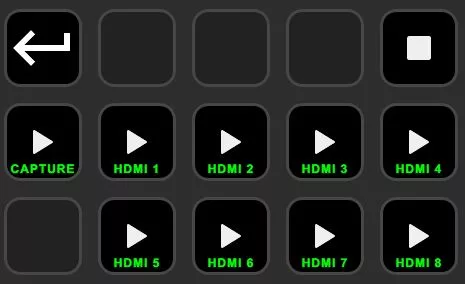
HDMI capture (Shift + D, Shift + 1 to 8)
To broadcast a captured HDMI input:
- Shift + D: enable capture.
- Shift + 1 to Shift + 8: select HDMI input 1 to 8.
Configuring a Stream Deck
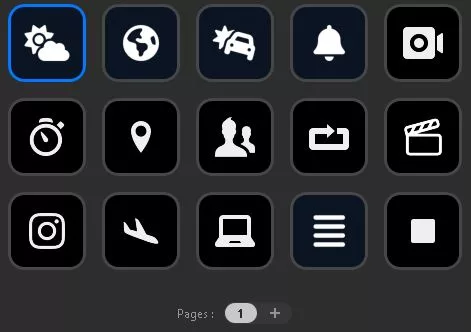
The Stream Deck turns these keyboard shortcuts into illustrated physical buttons. You assign each key of the unit to one of the combinations described above, then you choose a meaningful image for each function.
With a library of more than 6000 free icons, customizing this tool makes it possible to quickly identify and select the functions you need. The result: faster, more readable control that is perfectly suited to operators in emergency situations.